After speaking with a friend about what he used for work when he was an IT Specialist, he did emphasize how important it is for an IT Support Specialist to have an understanding of Active Directory. This was the first time I had heard of it and I had never actually taken the time to learn it before. So... I decided to do more research and set up a homelab for myself to explore Active Directory.
In this blog post, I'm documenting my journey of setting up Active Directory and a domain controller as my first goal with this lab.
The Plan
My goal here was to create a simple Active Directory environment that I could use for learning and experimenting. I need to understand how to manage users, groups, and policies within a Windows domain.
This is what I am starting with when building out this Active Directory environment:
- Windows Server 2022 - Base operating system with Desktop Experience
- Active Directory Domain Services (AD DS) - Core domain functionality
- Domain Controller Promotion - Converting the server to manage the domain
- Basic Domain Configuration - Setting up the myhomelab.local domain
Install Windows Server 2022
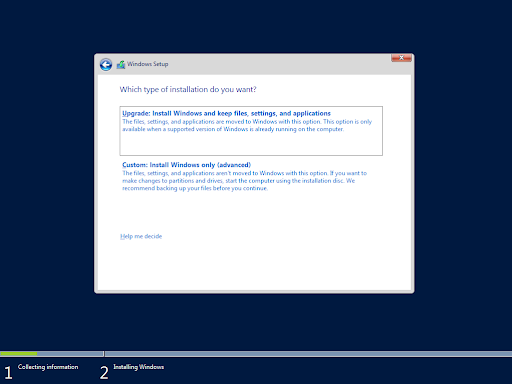
To get started, I had installed Windows Server 2022 on my Virtual Machine. I am using VMware Workstation Pro 17. The installation process was pretty straightforward though. I had chosen the Standard edition (Desktop Experience) and thought to just do the other versions later at some point.
During setup I ran into a licensing error when selecting the Upgrade option. The error showed a "Windows cannot find the Microsoft Software License Terms" message. I restarted the machine thinking I did something wrong and clicked Custom installation instead. After that there were no more issues.
Adding the Active Directory Domain Services Role
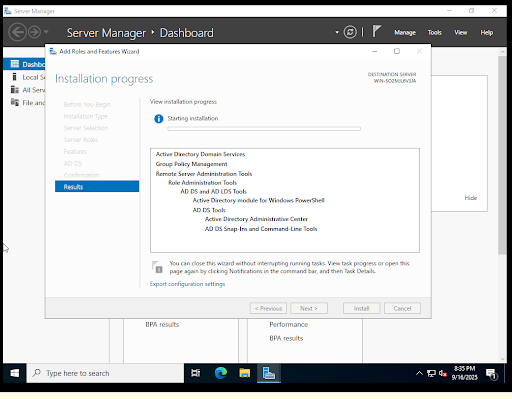
With Windows Server 2022 installed and configured, the next step was to add the Active Directory Domain Services (AD DS) role. I opened Server Manager and ran the Add Roles and Features wizard this is where you tell the server what services it should provide.
I selected the Active Directory Domain Services (AD DS) role from the list of server roles. Two features were automatically selected as well, Group Policy Management and Remote Server Administration Tools. I wasn't surprised since those are essentials for managing an Active Directory environment, because you will need to manage the group policies and perform administrative tasks remotely.
At the end of the installation I couldn't help but notice it was also installing those additional tools. It wasn't a problem because it was all on a Virtual Machine, and it wasn't taking too much space. I mean it's a lab environment anyways. I'm not planning to use this for anything else besides learning and experimenting After the installation completed a warning flag appeared indicating that was only just the first step; well after seeing the option for promoting the server to a domain controller.
Promoting the Server to a Domain Controller
I clicked the warning flag (the one with the exclamation point) and clicked the link for promoting the server to a domain controller. I followed the prompts through the wizard and I did feel a little nervous as I read each option, but I pushed through. Thought to myself if something goes wrong, I'll fix it as I go. Just gotta complete my goal then do research on the stuff I don't understand.
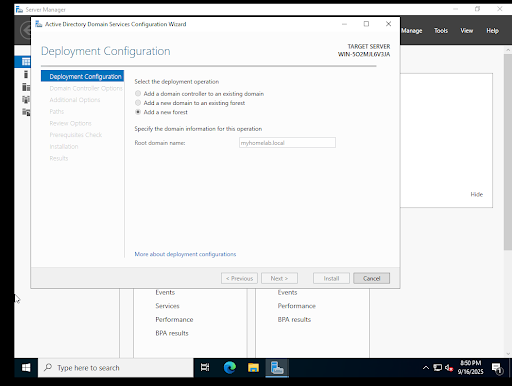
Okay, I've reached the deployment configuration section of the wizard. I clicked on 2 choices and the all didn't work besides one. I don't know why yet, but I will soon. So I picked the Add a new forest option, set the root domain to myhomelab.local, and continued. That worked out fine, since I was planning to set up an Active Directory forest anyway.
The Restart and Waiting
After completing the wizard I wondered how long it would take to be promoted to domain controller. Instead of watching the progress of it installing, I shifted my focus to something else for a bit. Actually I did it twice, once when I saw it installing and the other time was when it was when it said applying computer settings on the screen. Once it finished, I logged in with the domain credentials and it worked!
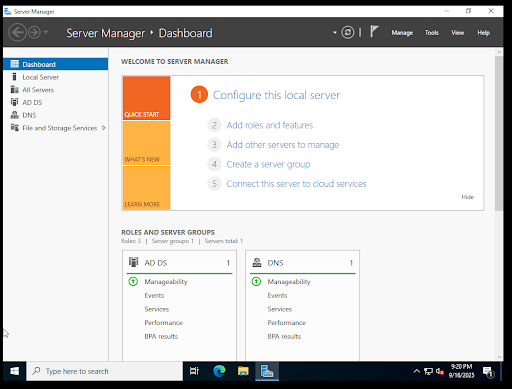
Status: Completed – Week 1
Next Steps: Create OUs/users/groups, test logons, and apply initial GPOs.
Challenges and Learning
The biggest challenges so far have been:
Licensing error:
The license error caught me off guard, since I wasn't expecting it. Luckily, the fix was simple—choosing Custom instead of Upgrade during the setup solved the issue right away.
Domain name:
Picking the domain name was straightforward. I wanted something short and easy to remember in case I had to type it in again, so I went with myhomelab.local.
What's Next
Over the next few weeks, I plan to build on my Active Directory lab by completing:
- Week 1: Install and configure Windows Server 2022 as a Domain Controller.
- Week 2: Create and manage Active Directory users and groups.
- Week 3: Implement Group Policy Objects (GPOs) to manage security and configuration.
- Week 4: Set up a second Domain Controller for redundancy and replication testing.
- Week 5: Add a Windows 10 client machine to the domain and test login/policy enforcement.
Conclusion
Reading about Active Directory was one thing, but actually setting it up in this lab made it click in a way reading alone couldn't. I definitely wouldn't have grasped the concepts as deeply without getting hands-on. Although I know there is still a lot I don't understand, I'm excited to see what I can learn as I keep building out this environment. There's a plan for each project, and I'll be posting them all. So, if anyone else wants to follow along and learn too, they can use this as a guide.